
How to Make AI Trend Videos from Photos
Make AI trend videos from photos with TrendVideo: pick a template, upload images and download an MP4. See photo requirements, credit costs and limits.
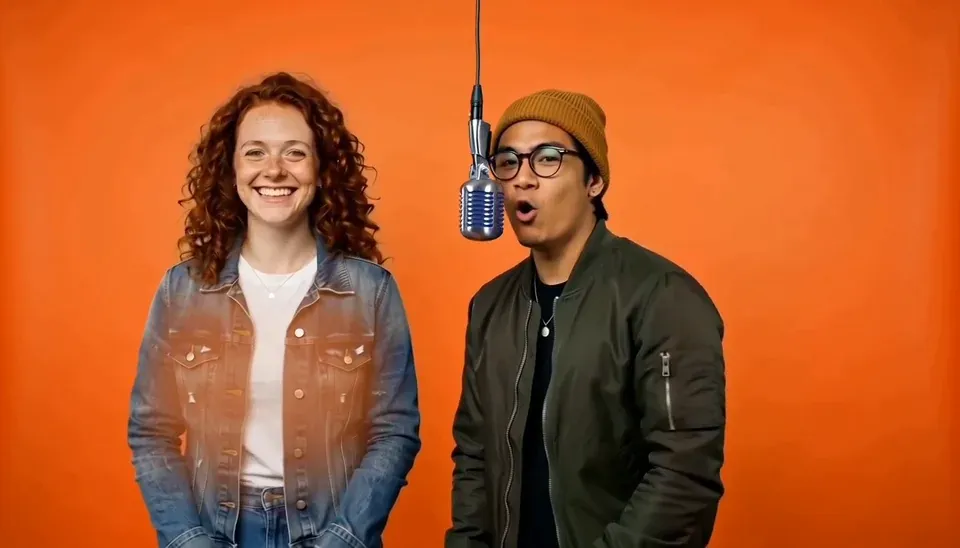
TrendVideo lets you make AI trend videos from photos in your browser: pick a template, add the requested photos, choose a quality and generate a short MP4. The scene and instructions are already set up. You don’t need to write a prompt, film yourself dancing or install an editing app.
You’ve seen the orange booth. Two people, one hanging microphone, and now someone’s cats are doing it too. You want a version with you and your best friend. Preferably without spending the evening learning how to prompt it.
If you already know the look you want, browse the templates. If you’re wondering which photos to use, what you’ll get back or whether you need a subscription, here’s the practical version.
Start with the clip you’d actually send to a friend
“Make a video from my photo” can mean anything from a slow zoom to a whole new scene. TrendVideo is for the latter: recognizable short formats with your people, pets or objects in them. Think of AI video templates as a scene you can join, rather than an empty prompt box.
The template previews matter more than the names. Watch one before uploading. Is the joke the dance, the pairing of the two characters or the ridiculous car flip? Pick the one where your photo would make the result funnier or more personal.
A few starting points from the current catalog:
- Hotel Lobby: two separate photos, one per person, for a 10-second rap-duo scene in the orange booth. A good place to start if the whole idea is “this should be us.”
- NEON Dance: two photos for a 15-second AI dance video for two. Try two consenting adults or your pets; you don’t need to record anyone performing the moves.
- Flying Car Stunt: one photo of your car for a 12-second ramp-and-flip scene. Finally, a use for that photo you took after washing it.
- Outstanding Tiny Desk: one to five photos for a 15-second band-performance scene. Useful when one starring role isn’t enough.
You can watch the examples and compare them with the template previews before buying credits. The lengths and photo counts above describe these templates, rather than settings you have to figure out yourself.
How to turn your photos into a video
1. Choose a template, then prepare its photos
For a two-person scene, prepare two individual photos, one for each subject. You don’t need to arrange a new photo together. The upload dialog shows how many images the selected template accepts.
Choose a clear, well-lit image where the face or main subject is easy to see. Heavy filters, sunglasses and a face half out of frame give the model less to work with. For a car or product, use a shot that shows its shape clearly instead of a distant detail.
These are sensible starting points, not a promise of a perfect likeness. AI can still change faces, hands, clothing or small details.
Uploads accept JPEG, PNG or WebP, up to 5 MB per photo and 20 MB in total. If your phone saved a HEIC image, export a JPEG first.
2. Pick Standard or HD and check the credit cost
Sign in, add your images and select the quality in the creation dialog. Every template costs 10 credits in Standard or 20 credits in HD. Check the resolution shown alongside the choice: HD doesn’t mean the same output size for every template.
Most current templates offer 480p Standard and 720p HD. Outstanding Tiny Desk offers 720p and 1080p. If you’re trying an idea for the first time, Standard is the smaller credit commitment; choose based on where you plan to use the result.
3. Generate, then check My videos
Start the render and follow it in My videos, which requires sign-in. The usual expectation is a few minutes, but the template and provider queue affect the wait. Closing the creation dialog doesn’t mean you need to submit the same job again.
When it finishes, download the MP4. Most templates use vertical 9:16. Hotel Lobby, NEON Dance and Closed on Sunday Choir use landscape 16:9 to match their sample framing. Watch it once before posting: check the faces, movement and sound, especially if someone else appears in it.
What does one video actually cost?
As of November 1, 2026, the smallest one-time pack costs US$9.99 for 10 credits. That covers one Standard video. An HD render needs 20 credits, so that smallest pack alone won’t cover it.
You don’t need a subscription for a one-off joke or birthday message. Pack credits don’t expire. If you create regularly, monthly and yearly plans are available; their credits arrive each month and expire at the end of that allowance’s billing month rather than rolling over. A yearly payment does not give you the whole year’s credits at once.
Browsing and watching samples is free. Generating a video is paid; there is no free generation trial. Check the current packs and plans before purchasing, since this article’s price snapshot can change.
Will it have the song I heard on TikTok?
The model generates audio with the video. The original commercial track is not guaranteed. A familiar template name describes the scene; it isn’t a promise that the artist’s recording comes with your download.
If the exact sound is part of the joke, check the sound options and permissions on the platform where you’ll post. You may be able to add a licensed trend sound there. Preview both the video and audio before sharing.
For YouTube Shorts, add eligible music with YouTube’s own creation tools rather than assuming a downloaded song is licensed. YouTube’s official music guidance explains that music added outside those tools can receive ordinary copyright claims. Check the available track and usage conditions for each platform and account.
How should I label an AI video when posting?
Use the posting platform’s AI disclosure option when your clip realistically shows someone doing something that never happened. Getting a person’s permission to use their photo and telling viewers the scene is generated serve different purposes.
TikTok’s AI-generated content guidance explains its creator and automatic labels for generated or significantly altered media. YouTube’s disclosure guidance covers realistic synthetic scenes and making real people appear to do things they did not do. Read the current guidance when you post; a TrendVideo download does not configure those platform settings for you.
What if it fails—or the face looks wrong?
A technically failed render automatically returns its credits. A finished clip with an odd face or a move you dislike is a different situation: it doesn’t automatically count as a failed render. For a clear defect, contact support with the video ID so the result can be reviewed. The refund policy explains the distinction.
Before trying again, look at the input. Is the face sharp? Is one person much smaller in the image? Did you upload a group shot where an individual portrait was expected? Changing an unclear photo is a more deliberate next attempt than repeatedly submitting the same one.
Use your own photos, adults who agreed to appear, or your own pets, car and products. The service’s current rules exclude children and celebrities. Your uploads aren’t added to a public gallery; they are sent to the video provider to process your request. See the privacy policy for the broader data practices.
Is TrendVideo the right starting point for your idea?
If you want a recognizable dance, a duo moment or a stunt with your own photos—and would rather choose a scene than build it from scratch—this is the workflow TrendVideo is built for.
If you need exact choreography, a guaranteed face match, the original song or a longer film assembled shot by shot, this template flow gives you less control than that job needs. A recognizable format also can’t guarantee views. The personal choice is still yours: who goes in the scene, why it’s funny and who you send it to.
Start with the clip you’d actually send to a friend. Pick a template and see what photos it needs.
About this guide
The TrendVideo team maintains this guide against the product’s template catalog, upload limits and pricing. The November 1, 2026 revision checked those product details and added the platform sources linked above. Prices and platform policies can change; the creation dialog, current pricing and linked official help pages provide the latest conditions. Learn about TrendVideo or contact support if a step no longer matches what you see.